
By Rose Peña
Bad data sticks. Whether it’s a typo, the wrong unit number, missing context, or a report that doesn’t reflect what actually happened — if a crash or inspection record is wrong in FMCSA’s system, it doesn’t just sit in a government database. It shows up where it hurts: your insurance.
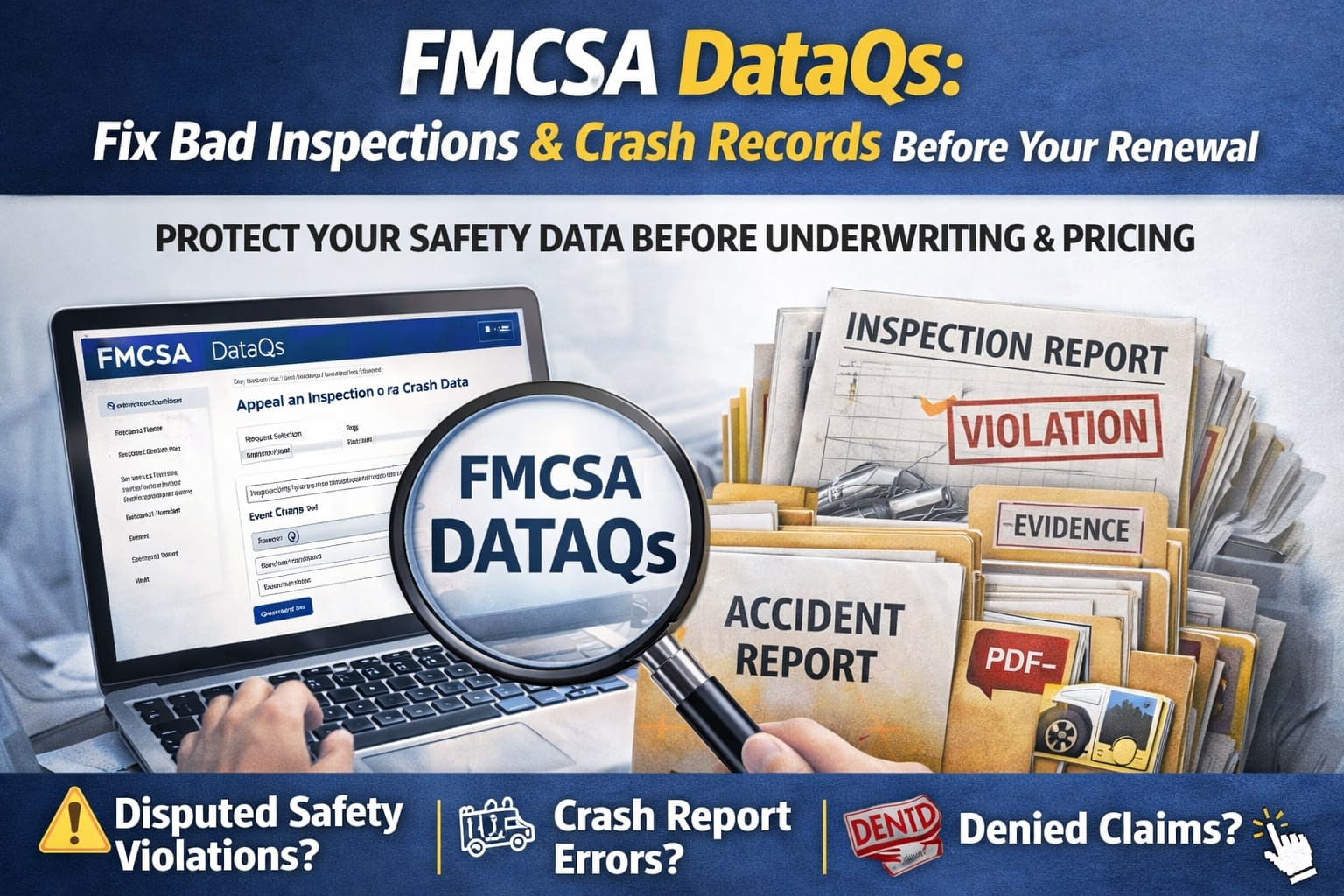
There is a formal process to dispute and correct these records. It’s called DataQs. This post walks through what it is, when to use it, and how to move through it step by step.
Why This Matters for Your Insurance
Insurance companies don’t price policies on gut feeling. They look at your loss history, operations, and safety record patterns. If a crash or inspection is wrong or missing key context, it can follow your company into:
- Underwriting — the part of the insurance company that decides if they want the risk at all
- Pricing — your rate, down payment, deductibles, and whether they offer terms
- Renewal leverage — whether you’re negotiating from strength or constantly explaining surprises
- Broker relationships — if your profile looks messy, some brokers stop shopping as hard
“If the record is wrong, you want a clean way to say: here’s the proof. Please correct it.”
That’s what DataQs is for.
What DataQs Is
DataQs is FMCSA’s official online system that lets carriers request a review and correction of safety data. Think of it as a formal dispute process — but it only works when you bring documentation to support your case.
You can submit a Request for Data Review (RDR) for:
- Inspections
- Crashes
- Audits and compliance reviews
- Enforcement actions
- Registration or authority-related items
What You Need Before You Start
This process works best when you are clear, specific, and ready to upload proof. Have these items ready before you begin:
- Access to your DataQs account at dataqs.fmcsa.dot.gov — you’ll need Login.gov credentials to sign in
- The specific details tied to the issue: inspection date, report number, crash date, state, vehicle/unit number, or driver information
- Supporting documents you can upload — PDFs, photos, inspection reports, court documents, ELD records, repair orders, or other evidence
- A clear, factual description of what is wrong and what the correct information should be
The more organized your documentation is before you submit, the stronger your request. Vague submissions without supporting evidence are much less likely to result in a correction.
Step-by-Step: How to Submit a DataQs Request
-
1Log in to DataQsGo to dataqs.fmcsa.dot.gov and sign in using your Login.gov credentials. If you don’t have a DataQs account yet, you’ll need to create one linked to your USDOT number.
-
2Locate the record you want to disputeFind the specific inspection, crash, or other record in the system. You’ll need the report number, date, and state where it occurred. Pull the exact record before submitting so your dispute references the correct entry.
-
3Submit a Request for Data Review (RDR)Click “Submit a Request” and select the appropriate category — inspection, crash, audit, etc. Be specific about what is incorrect. State the facts clearly: what the record says, what actually happened, and what correction you are requesting.
-
4Upload your supporting documentationThis is the most important step. Attach everything that supports your case — police reports, repair orders, court records showing a violation was dismissed, ELD data, photos, or any other evidence that speaks directly to the error. One strong document is better than several irrelevant ones.
-
5Track your request statusOnce submitted, you can monitor the status of your RDR in the DataQs system. The reviewing agency (typically the state that issued the inspection or report) will respond. Response times vary by state and volume — some take a few weeks, others longer.
-
6Respond if the state requests more informationIn some cases, the reviewing agency may ask for additional documentation or clarification. Respond promptly and stay on top of any follow-up requests — delays on your end can stall the process.
-
7Review the outcomeThe reviewing agency will either approve the correction, deny the request, or mark the record as “under review.” If approved, the correction will be reflected in your FMCSA record. If denied, the denial will include a reason — which may inform whether you have additional options.
DataQs can correct factual errors — wrong vehicle number, incorrect date, a violation that was dismissed in court, or a crash that was attributed to the wrong carrier. It is not a tool to remove accurate records simply because they are unfavorable.
If an inspection was conducted correctly and the violations were valid, a DataQs request will not remove them. The process is for errors and inaccuracies — not for disputing subjective judgment calls that were correctly documented.
Understanding this distinction matters before you invest time in the process. If the record is accurate but unfavorable, the better path is proactive safety improvement and documenting corrective action — not a dispute that won’t go anywhere.
Timing Matters — Especially Before Renewal
A DataQs correction doesn’t happen overnight. Depending on the state and the complexity of the request, it can take weeks or longer. If you have an upcoming renewal and a record you believe is wrong, the time to act is well before your renewal date — not during it.
We recommend reviewing your FMCSA record at least 90 to 120 days before renewal. That gives you time to identify issues, gather documentation, submit a request, and follow up — without being rushed by a renewal deadline.
At BTP, we review FMCSA safety profiles as part of our renewal process. If you want to know what your record looks like before an underwriter does — including whether there are items worth disputing — reach out.
Your safety record is part of your insurance story.
Wrong data can cost you at renewal. Let’s look at what your profile says before it becomes a problem.
Talk to BTP InsuranceBTP Insurance Services is a bilingual independent commercial insurance agency based in Texas, specializing in trucking, commercial auto, and general liability. Rose works directly with motor carriers across Texas to make sure their coverage and compliance are aligned.
